

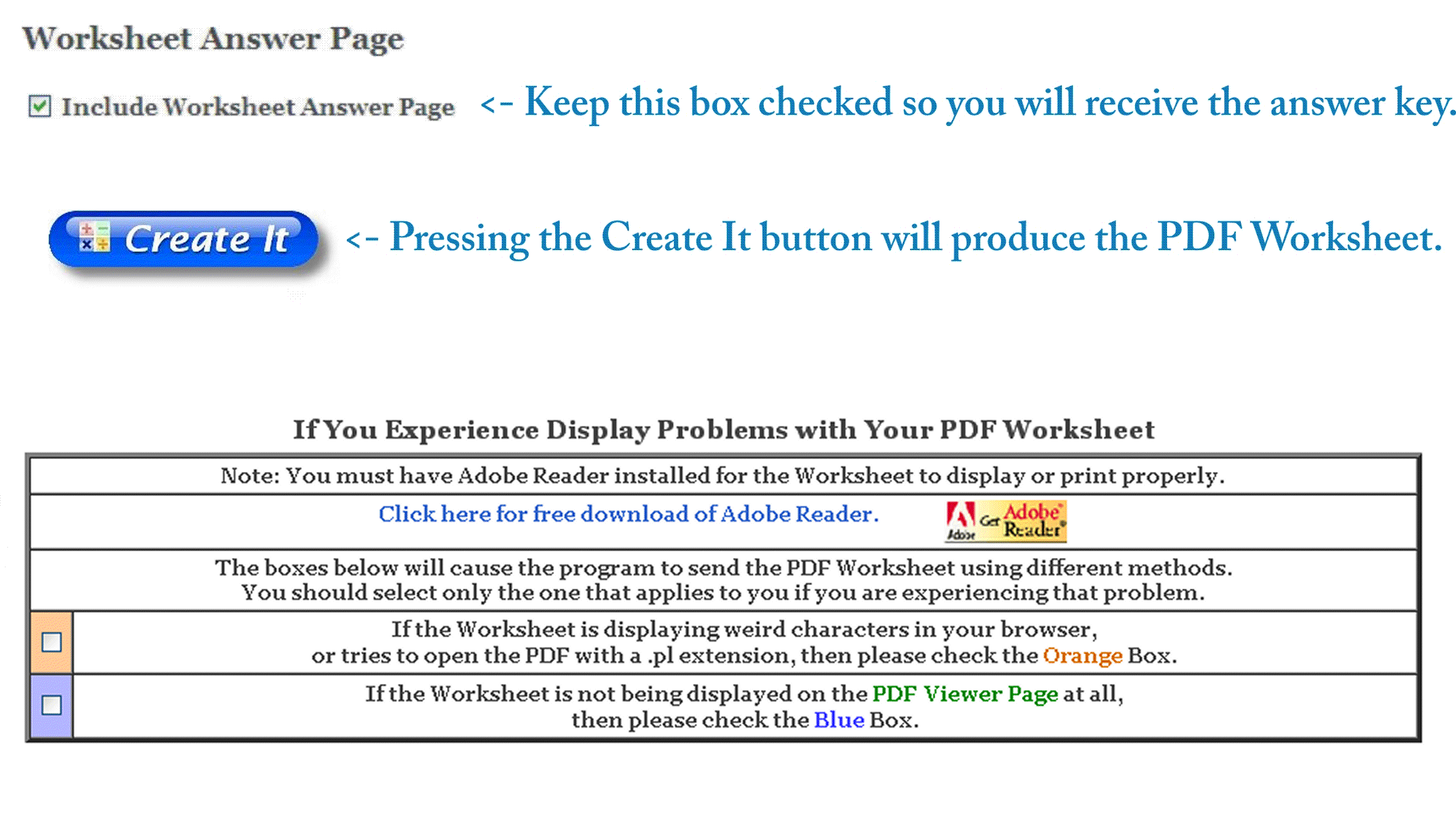
| The graphic below shows what you see at the bottom of every worksheet generator. There are  check boxes and the check boxes and the  button. button.This page will describe how to use these features in more detail. |
 |
|
Note: You MUST have an Adobe product installed on your computer to ensure that the site will work for you. When you click on the button and the worksheet does not show up in your browser, you will need to make sure that you have Adobe Reader or Adobe Acrobat installed on your computer, and that you are able to open and view PDF files.
|

Sizing Issues for Chrome Browsers Using Windows 7
If you are having sizing issues where the measurement worksheets that show actual rulers are not printing to the correct size please follow these directions. |
||
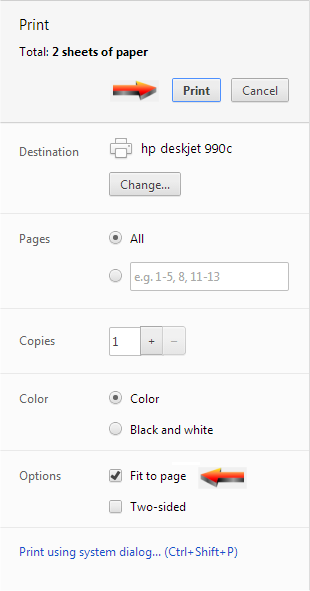
| When you select the worksheet to print you will see the Print Dialog Box display on your computer. Please make sure that you select "Fit to page" as shown below and press the Print button. If the PDF prints to the correct size then you are done, if not Please Email us your operating system and browser information, and we will be happy to help you. You can contact us at this email address:
|
 |
|
Sizing Issues for IE, Firefox, and Opera Browsers or Partial Printing Problems Using Windows 7
If you are having sizing issues where the measurement worksheets that show actual rulers are not printing to the correct size, or problems where just part of the worksheet is being printed please follow these directions. |
||
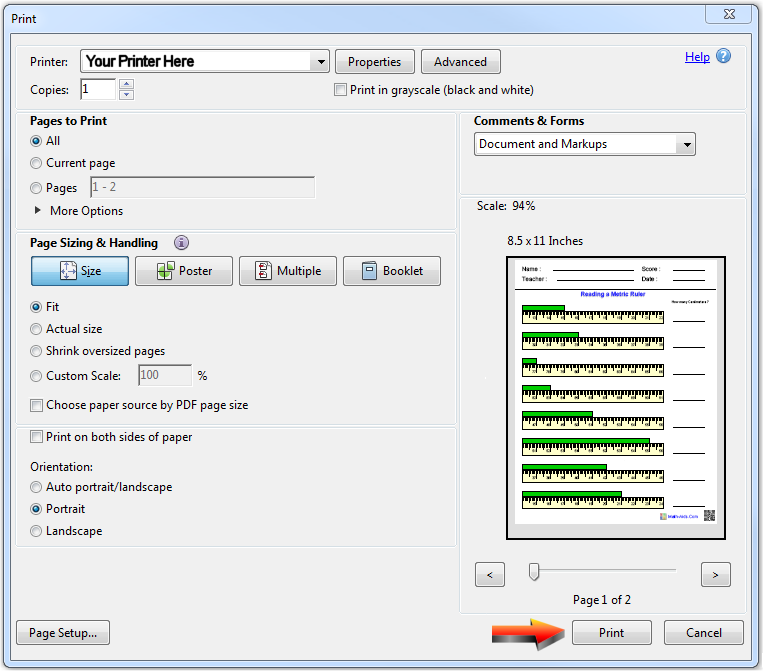
| When you select the PDF to print you will see the Print Dialog Box display on your computer if you are using the Firefox, IE, or Opera browser. Please make sure that you select the same options as in the Print Dialog Box as shown on the right, and press Print to print the PDF. If the PDF prints to the correct size and fully then you are done, if not go to the next step. |
 |
|
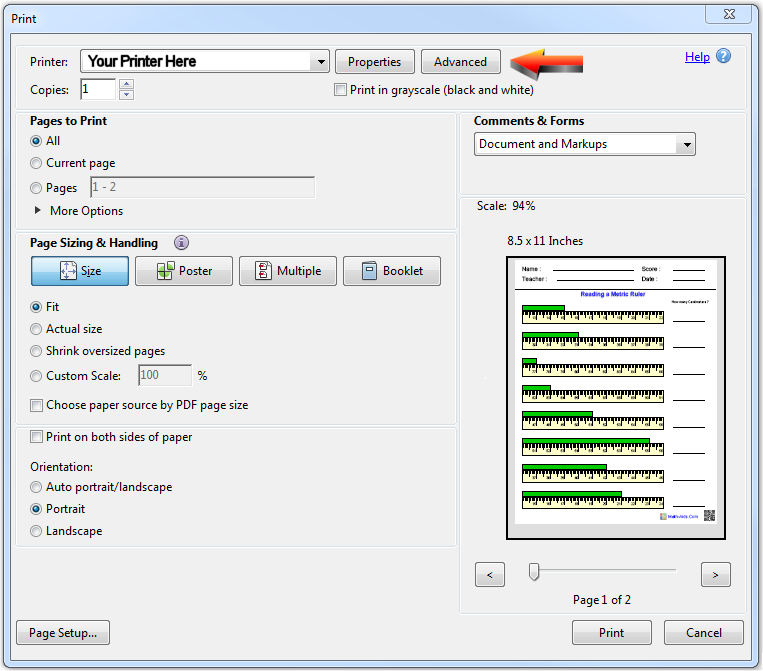
| If you still are experiencing printing problems click on the Advanced button on the upper right of the Print Dialog Box as shown by the orange arrow. This will bring up the Advanced Print Setup Dialog Box shown on the next image. |
 |
|
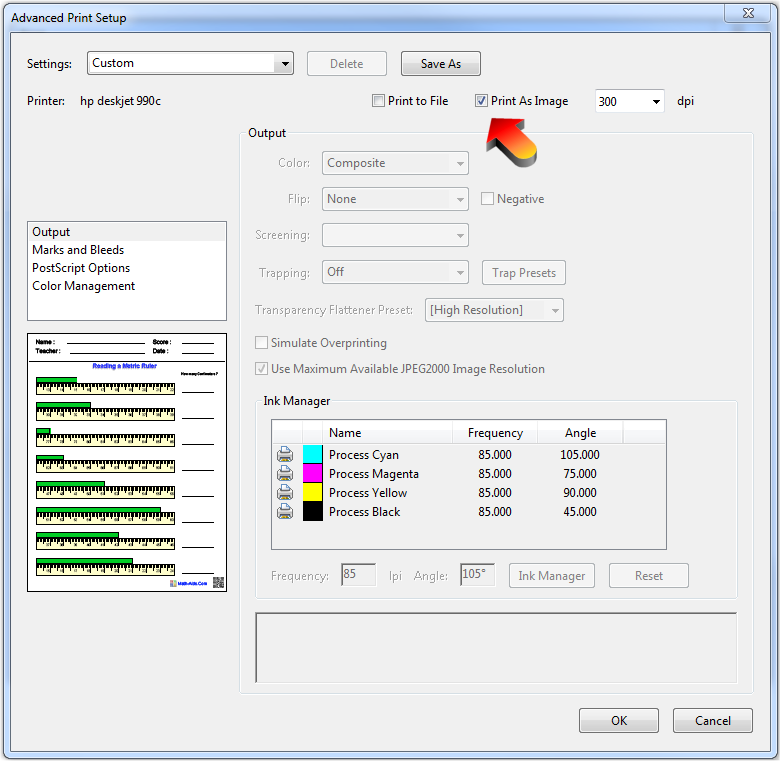
| This is the Advanced Dialog Box. Make sure that the Print as Image is selected as shown by the orange arrow. If you have the option also select 300 dpi for the output. Not all printers will have this option. Go to the next step. |
 |
|
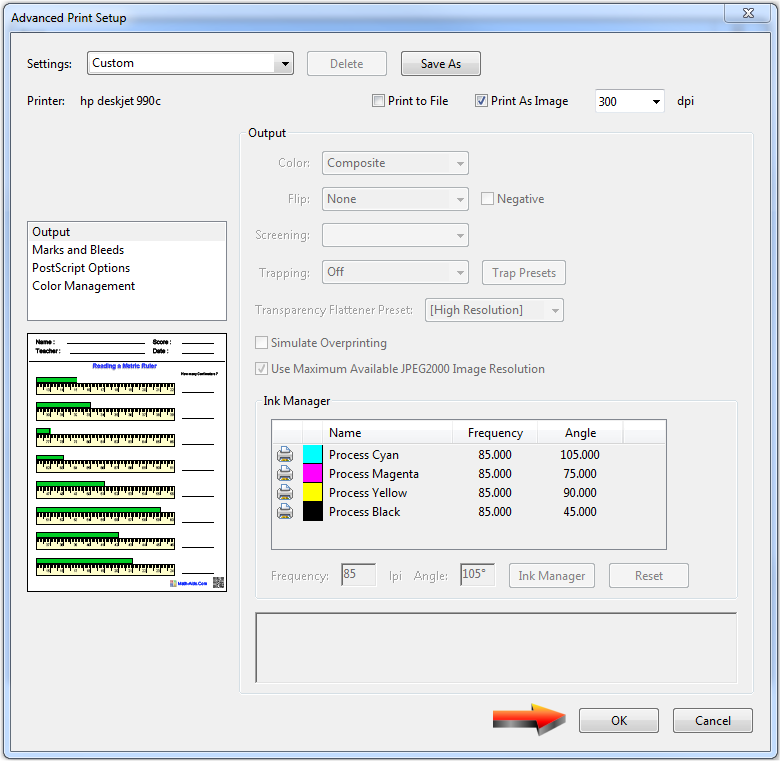
| Now click on the OK button on the lower right. This will return you to the original Print Dialog Box. |
 |
|
| This is the original Print Dialog Box. Now click on the Print button on the lower right. If the PDF prints you are done. If not please go to the next step. |
|
|
Please Email us your operating system and browser information, and we will be happy to help you. You can contact us at this email address: |
||
All Browsers With Partial Printing Problems Using Windows XP
If you are having problems where just part of the PDF is being printed please follow these directions. |
||
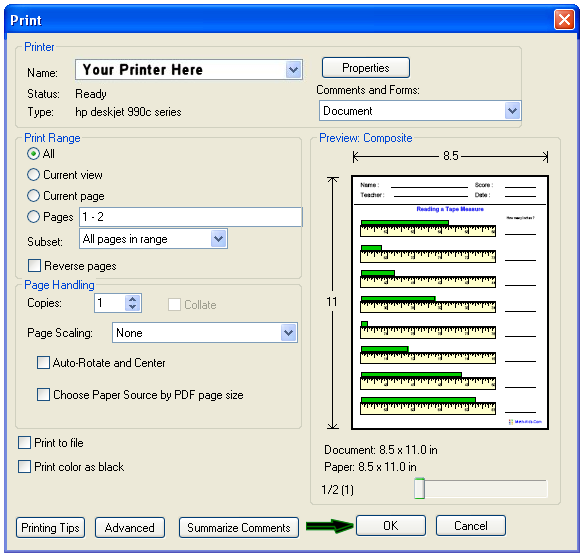
| When you select the PDF to print you will see the Print Dialog Box display on your computer. Please make sure that you select the same options as in the Print Dialog Box as shown on the right, and press OK to print the PDF. If the PDF prints you are done, if not go to the next step. |
 |
|
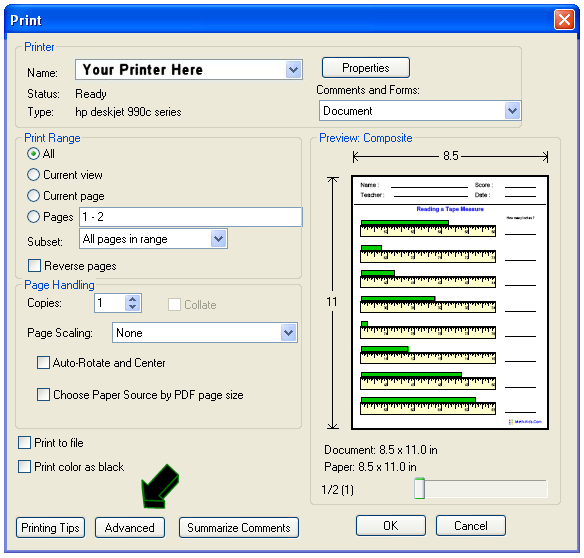
| If you still are experiencing partial printing problems click on the Advanced button on the lower left of the Print Dialog Box as shown on the image. This will bring up the Advanced Print Setup Dialog Box shown on the next image. |
 |
|
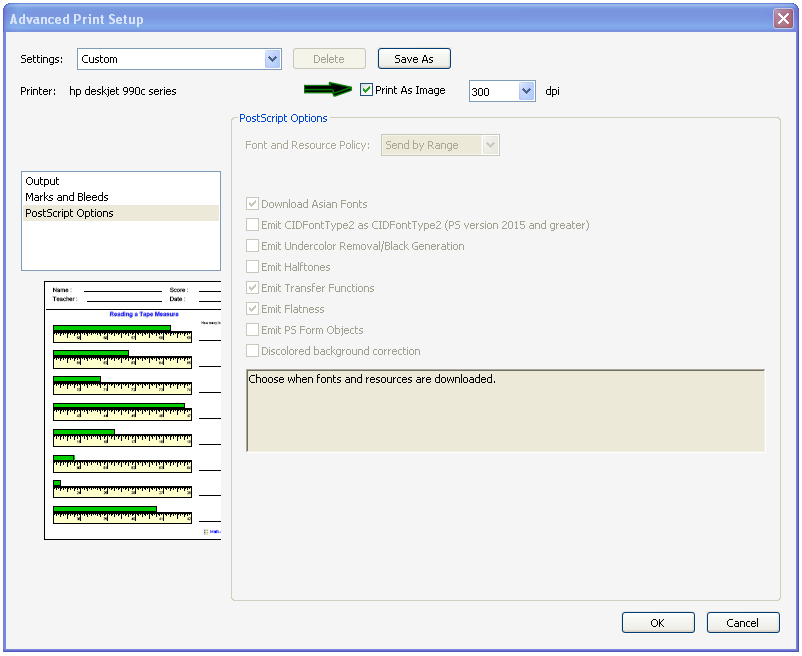
| This is the Advanced Dialog Box. Make sure that the Print as Image is selected as shown by the green arrow. If you have the option also select 300 dpi for the output. Not all printers will have this option. Go to the next step. |
 |
|
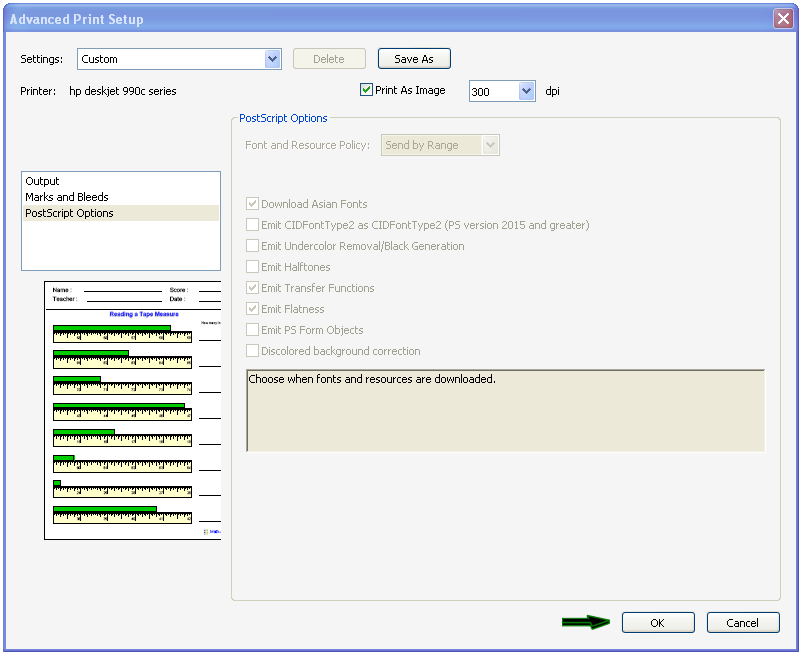
| Now click on the OK button on the lower right. This will return you to the original Print Dialog Box. |
 |
|
| This is the original Print Dialog Box. Now click on the OK button on the lower right. If the PDF prints you are done. If not please go to the next step. |
|
|
Please Email us your operating system and browser information, and we will be happy to help you. You can contact us at this email address: |
||